A practical review pass for branded PDFs before export
Finish PDF Pages with Watermarks, Headers, and Image Overlays
Use one browser-based editing pass to add a watermark, repeated headers and footers, and a page-specific image overlay before you download the final PDF.
Many PDF workflows break down at the last mile. The document is already written, approved, and almost ready to send, but it still needs visible status text, page numbering, a repeated header, or a small image placed on one specific page. At that point people often leave the PDF workflow completely, reopen the file in a design tool, export again, and then run one more quality check just to make sure nothing shifted. That extra loop is slow, fragile, and unnecessary when the only remaining work is a finishing pass.
Why a finishing pass matters
Final-stage edits are usually not content edits. They are presentation edits that help the reader understand what the file is, where they are inside it, and whether the file is intended for review, draft circulation, client delivery, or internal approval. A watermark can prevent the wrong version from circulating. A header can anchor each page to a case name, project code, or review round. A footer can keep pagination visible even when the source file never had one. A small image on one page can add a badge, stamp, diagram, or branded element without forcing the whole document through another toolchain.
What this page editor pass can handle
- Apply a repeated watermark when the whole file needs a visible status such as draft, sample, copy, or internal review.
- Add headers and footers for project labels, page numbers, dates, internal references, or a consistent reading frame across every page.
- Place an image overlay on a specific page when you need a logo, screenshot, approval mark, or supporting visual in a precise position.
- Review each page in the modal before export so the finishing changes are checked in context instead of guessed from file names alone.
The advantage is not just that these options exist. The advantage is that they live in the same pass. You can upload the file, review pages, make controlled adjustments, and export without changing applications halfway through the job. If that is the kind of cleanup you need, the Edit PDF Pages tool is the point where the file can go from technically complete to genuinely ready to share.
A simple workflow before export
- Open the file and review the document page by page first, before applying any visual layer. The goal is to confirm sequence, blank pages, orientation, and whether a global or page-specific adjustment is needed.
- Add the repeated elements next. If the document needs global status text, set the watermark first. If it needs reading context, configure the header and footer while you still have the entire file structure in mind.
- Use an image overlay only on the page that actually needs it. That keeps branding, approvals, and supporting visuals intentional instead of turning the whole file into a decorated export.
- Check spacing after each layer. A watermark that looks balanced on a wide page may feel too dominant on a dense one, and a footer with page numbers should remain readable without stealing attention from the content.
- Do one uninterrupted reading pass at the end. Start from page one, keep the final recipient in mind, and verify that every added element supports the document instead of competing with it.
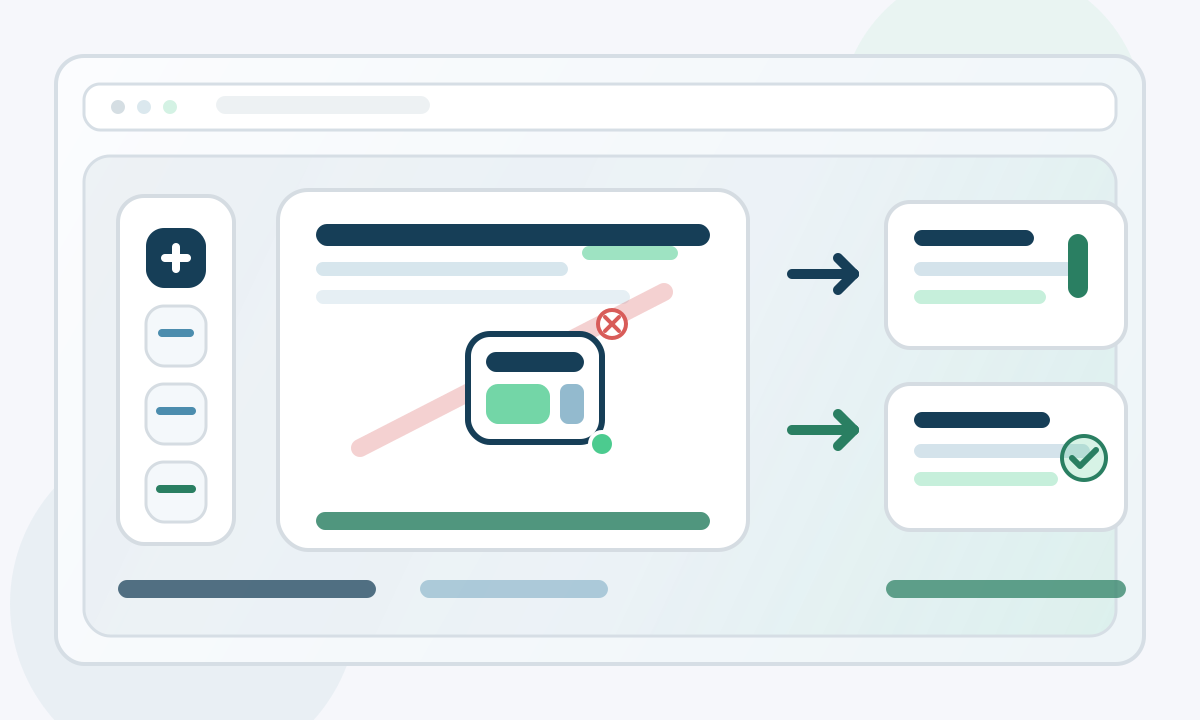
The new image overlay option is especially useful because it solves a narrow but common problem: one page needs a visual marker, and the rest of the file does not. In practice that often means a company logo on a title sheet, a small approval badge on a summary page, a screenshot placed beside a note, or a document stamp that should sit on only one page. The interaction matters here. You can add the image, drag it, resize it, replace it by deleting and adding again, and keep testing the exact placement inside the preview instead of exporting blindly after every attempt.
When to use each layer
- Use a watermark when the message must stay obvious even if individual pages are separated from the rest of the file. Draft and confidential labels are strongest when they travel with every page.
- Use headers and footers when readers need orientation. Project identifiers, case labels, and page numbers reduce ambiguity, especially in long PDFs that may be printed, forwarded, or reviewed in pieces.
- Use an image overlay when the change is local and visual. It is the right tool for one-page branding or annotation, not for repeated status messaging across the full document.
These layers also combine well when each one does a separate job. A watermark can communicate status, a footer can communicate position, and an image overlay can communicate identity or approval on one page. Problems start when one layer is used to do another layer's work. For example, if a logo is repeated on every page to compensate for a missing header, the result often feels heavier than necessary. If a watermark is used to carry information that belongs in a footer, readability suffers. The cleanest result usually comes from assigning one responsibility to each layer and keeping every decision small, deliberate, and easy to review.
Common mistakes to avoid
- Do not add a watermark so dark or so large that body text becomes harder to scan. Status should be visible, not dominant.
- Do not crowd headers and footers with too much text. Repeated page furniture works best when it stays short, predictable, and readable at a glance.
- Do not place an overlay image without checking how it sits against the actual page content. Empty space in one page preview can disappear on another revision.
- Do not skip the final reading pass just because each individual adjustment looked fine while you were making it. The exported file should still be reviewed as one document.
A strong PDF handoff usually comes from restraint, not from piling on features. If the file already reads well, the finishing pass should make that clarity more obvious, not less. Use the watermark to state the document status, use headers and footers to guide the reader, and use the image overlay only where a page truly needs a visual cue. That approach keeps the final export clean, credible, and easy to circulate without a second round of manual cleanup.