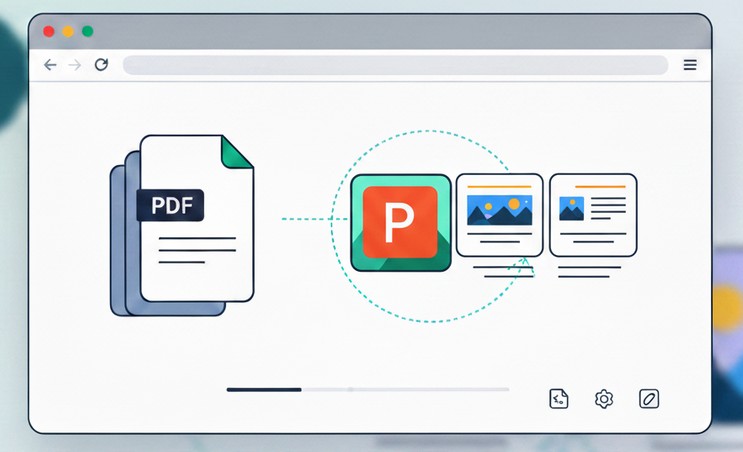
நிலையான ஆவணங்களை உண்மையிலேயே பயன்படுத்தக்கூடிய விளக்கக்காட்சிகளாக மாற்றுவதற்கான நடைமுறை வழிகாட்டி
PDF பக்கங்களைத் திருத்தக்கூடிய PowerPoint ஸ்லைடுகளாக மாற்றுங்கள்
PDF கோப்புகளை அமைப்பு மற்றும் விகிதாசாரத்தைப் பாதுகாக்கும் PowerPoint ஸ்லைடுகளாக மாற்றுவது எப்படி என்று கற்றுக்கொள்ளுங்கள் — திருத்தம், மறுவரிசைப்படுத்தல் அல்லது வழங்குவதற்குத் தயார், அனைத்தும் உங்கள் உலாவியில் உள்ளூரில் செயலாக்கப்படும்.
PDFs are great for locking down a document, but they become a problem the moment you need to present the content or repurpose it in a slide deck. Copying text from a PDF and pasting it into PowerPoint almost never looks right. Tables break, images detach from their positions, and fonts change unpredictably. What you usually end up with is a half-built slide that takes longer to fix than to recreate from scratch. The cleaner option is to convert the PDF directly into a presentation file where each page becomes a slide that preserves the original layout.
The key difference between a good conversion and a frustrating one lies in how pages are rendered. A reliable method takes each PDF page, renders it at high enough resolution to keep text legible and images sharp, and places it as a full-bleed background on a properly sized slide. This preserves proportions, avoids cropping, and produces a presentation that looks intentional rather than improvised. The dimensions follow the original page, so whether the source is A4, letter, or a custom format, the slide adapts instead of forcing everything into a generic 16:9 box.
One of the most common use cases is repurposing reports. If someone hands you a 30-page PDF with quarterly results, brand guidelines, or project documentation, and you need to walk a team through it, converting that PDF into slides lets you present it natively in PowerPoint instead of screen-sharing a PDF viewer and scrolling page by page. The audience gets a familiar format, you can jump between slides, and you can add speaker notes or annotations without altering the original document.
Another scenario that comes up frequently is academic and training material. Professors, instructors, and course designers often receive content as PDFs — textbook chapters, reference guides, worksheets — and need to turn them into teaching decks. A proper conversion keeps the content readable on a projector or shared screen, and the instructor can add overlays, highlights, or transition slides between sections without fighting the layout.
Batch conversion matters more than most people expect. When you need to convert several PDFs at once, doing them one at a time is tedious. A tool that handles multiple files and lets you decide whether to merge all pages into a single presentation or export each PDF as a separate file saves real time. Merging is useful when the PDFs are chapters of the same project. Keeping them separate makes sense when they are unrelated documents that just happen to need conversion at the same time.
When you are ready to convert, open the PDF to PowerPoint tool and drop your files. Choose whether to merge them into one presentation or keep them separate, and the conversion runs entirely in your browser. No file is uploaded to a server. Each page is rendered at double resolution to keep details sharp, and the resulting slides match the original page dimensions exactly.
Privacy is a practical consideration, not just a talking point. Many of the documents people convert — financial reports, legal summaries, internal proposals, medical records — are sensitive by nature. Processing them locally means the file never leaves the device. There is no upload, no temporary storage on a remote server, and no third-party access. For teams working under data protection policies or handling client-facing material, that distinction changes the risk profile entirely.
There are limitations worth knowing. Because the conversion renders each page as an image, the resulting slides are not natively editable text. You cannot click into a paragraph and retype a sentence. However, you can add new text boxes, shapes, notes, and images on top of the slide content, which covers most practical editing needs. If you need fully editable text extraction, that is a different workflow — but for presenting, reviewing, annotating, or repackaging visual content, the image-based approach is faster and more faithful to the original.
A useful habit is to name the output files clearly and check the first few slides after conversion. Confirm that the resolution looks right on screen, that nothing is cropped, and that the slide order matches the original page sequence. If you merged multiple PDFs, verify that the transition between documents is where you expect it. These quick checks take less than a minute and prevent the awkward moment of opening a 60-slide deck in a meeting and realizing something went wrong on slide three.
Converting PDFs to PowerPoint does not have to be a painful copy-paste exercise. When done properly, it produces a clean presentation that respects the original document while giving you the flexibility of a slide editor. Whether you are preparing a meeting, repackaging a report, or building training material from existing content, the workflow is the same: drop the PDF, choose your options, and get a presentation that is ready to use.