PNG, JPEG மற்றும் WebP ஏற்றுமதிகள் தெளிவாகவும் பகிர எளிதாகவும் இருக்க நடைமுறை வழிகாட்டி
தரம் குறையாமல் PDF ஐ படங்களாக மாற்றுங்கள்
PDF பக்கங்களை சுத்தமான முடிவுகளுடன் படங்களாக ஏற்றுமதி செய்வது எப்படி என்பதை அறியுங்கள்—சரியான வடிவமைப்பைத் தேர்ந்தெடுங்கள், உரையைத் தெளிவாக வைக்கவும்.
Converting a PDF to images can look like a trivial step—until you actually need the images to be usable. If you’re preparing product screenshots for a support article, extracting pages for a slide deck, sending a scan to a client, or uploading evidence to a form that only accepts images, the output has to be legible. The difference between a clean export and a disappointing one usually comes down to two decisions you make before you click anything: what format you’re exporting to, and what kind of PDF you’re starting from.
Start by identifying what the PDF contains. A digitally-created PDF (text, vector charts, UI mockups) behaves differently from a scanned PDF (photos of paper). Digital PDFs can produce extremely sharp exports, but they also expose mistakes quickly: a low-resolution embedded image will look worse once you zoom. Scanned PDFs are the opposite: they’re already rasterized, so the goal is usually to preserve readability without inflating file size. Knowing which case you’re in keeps you from chasing “quality” in the wrong place.
The next decision is format. PNG is the safe choice for pages with text, UI, diagrams, and line art. It keeps edges clean and avoids the smearing artifacts you sometimes see around small fonts. JPEG is better for photo-heavy pages where you can accept some compression in exchange for smaller files. WebP sits between them: it can be compact like JPEG while holding detail closer to PNG, and it’s a great default when you’re not sure who will download the files. The “best” format is the one that matches what people need to read, not the one that produces the smallest number.
If you care about crisp text, treat it like a viewing problem. Ask: how will the image be used—zoomed on mobile, printed, inserted into a report, or just skimmed? Many complaints about “blurry exports” aren’t caused by the converter; they’re caused by expectations. A page that looks fine on a PDF viewer at 100% might look soft once you turn it into a small image and then scale it up again. The safest way to judge is to open a sample output at 100% and check the smallest text on the page. If that passes, the rest usually passes too.
Multi-page PDFs deserve their own workflow. If you’re extracting a chapter, a set of receipts, or a batch of scanned pages, consistency matters more than a single “perfect” page. A good export should preserve page order, produce predictable file names, and keep orientation stable (no surprise rotated pages halfway through). When you share a folder of images, the reader can’t “scroll like a PDF”; they rely on the sequence. That’s why it’s worth converting the whole set in one pass instead of exporting pages one by one.
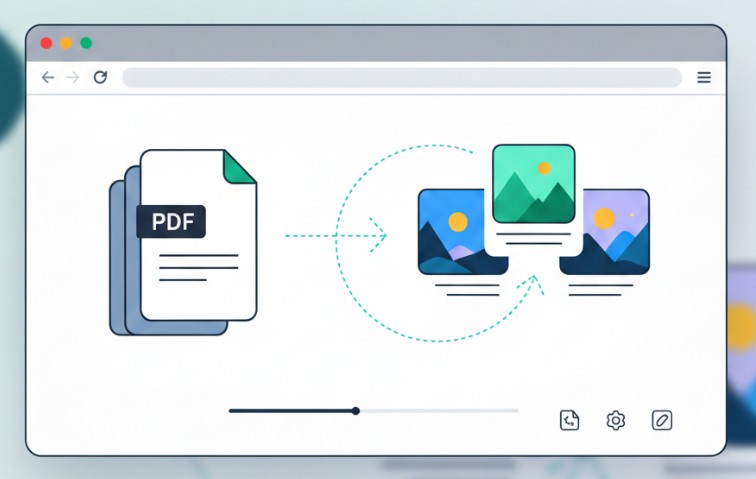
When you’re ready to export, open the PDF to Image tool and choose the format that matches the job: PNG for clarity-first, JPEG when size matters, and WebP when you want a modern balance. Convert the PDF(s), then spot-check a couple of pages: one with dense text, one with images, and one page that contains fine details like stamps or tiny footnotes. That 60-second review catches most issues before you send anything out.
File size is where people overcorrect. If your images feel too heavy, don’t automatically switch to JPEG and accept unreadable text. Instead, use a stronger format only where it makes sense. Photo pages compress well; typography and line art do not. If the source PDF is enormous because it’s a scan at excessive resolution, it can be smarter to reduce the PDF first and then export. A smaller, cleaner source often produces better downstream results than an aggressive image format choice that destroys details.
This is also where privacy becomes practical, not theoretical. PDFs are often converted precisely because the content is sensitive: IDs, invoices, medical forms, signed agreements, internal reports. Keeping the conversion local in the browser reduces how many systems the file touches. That doesn’t replace policy, but it reduces accidental exposure. For many teams, that’s the difference between “we can do this quickly” and “we need approvals for every upload.”
A small habit that improves results is to think about the next step. If the images will be inserted into a document, keep the format predictable. If they’re going to be shared in chat, keep the size reasonable. If they’re going into a knowledge base, prioritize clarity over compression. Converting PDFs to images isn’t a standalone task; it’s almost always a bridge in a larger workflow. The best export is the one that makes the next person’s job easier.
Finally, treat “unchanged” as a valid outcome in your decision-making. If PNG gives you the clearest pages and the files are still manageable, that’s a win. If WebP looks identical to PNG at normal viewing size but cuts weight significantly, that’s also a win. What you want to avoid is optimizing for a number and shipping images that look like they were compressed twice. A clean PDF-to-image export should feel boring—in the best possible way—because it’s reliable, readable, and ready to use.